
So In this case I had two vmkernel adapters, vmk0 (used for normal management and vMotion) and vmk1 (used for backup purposes) and their information including name, MAC address, MTU, switch & port group placement among other things) can be listed using the following command:
esxcli network ip interface list
The vmkernel adapter IP configuration can be listed using:
esxcli network ip interface ipv4 get
This is the output from the above command:

Let’s move on to topic of this blog post, the ESXi routing configuration via cli. And yes, there is an option to mange this via the a UI e.g vSphere Web Client as well.
List current routing configuration using the following command:
esxcli network ip route ipv4 list
In my case I received the following:

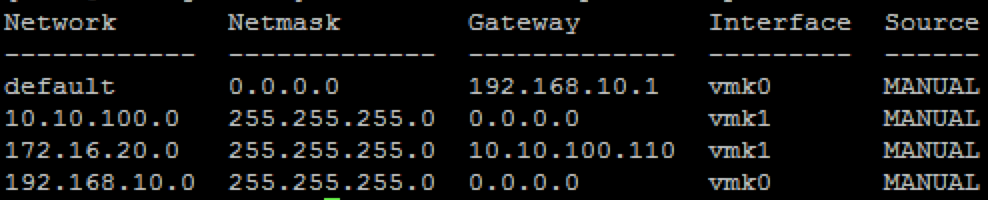
All traffic not target for the 10.10.100.0 network will go via vmk0 meaning the 192.168.10.110 interface to the 192.168.10.1 default gateway. Based on network requirements the customer wanted network 172.16.20.0/24 to be accesses via the 10.10.100.110.
The command syntax for adding and removing an additional route is:
esxcli network ip route ipv4 add/remove
So to achieve the requirements I ran the following command:
esxcli network ip route ipv4 add -n 172.16.20.0/24 -g 10.10.100.110
Verified the configuration using the list option and it looks ok:
The following command will remove my newly added configuration:
esxcli network ip route ipv4 remove -n 172.16.20.0/24 -g 10.10.100.110
These commands were tested on ESXi 6.0.0 build-3568940
3 pings